Audacity Noise Reduction vs. AI Background Noise Remover (2026 Engineering Comparison)
Deep comparison between Audacity's 2-step spectral Noise Reduction effect and modern 48 kHz neural AI speech enhancement on hiss, wind, echo, and video tracks.
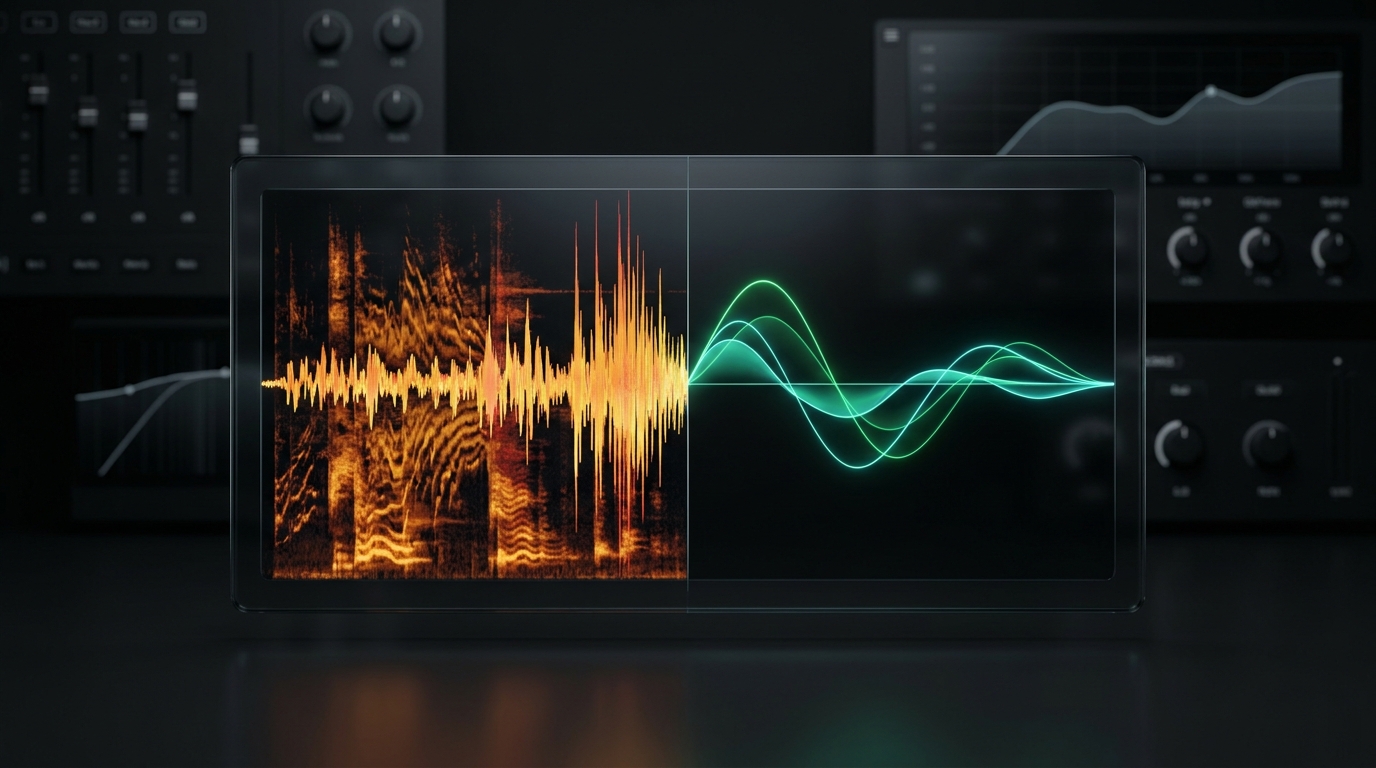
For well over a decade, Audacity has been the default free desktop recommendation whenever someone asks how to clean up noisy audio. Almost every podcaster, YouTuber, and audiobook narrator knows the classic two-step ritual: highlight 2 seconds of silent room tone, click Effect → Noise Removal and Repair → Noise Reduction → Get Noise Profile, then select the whole track and hit OK.
That workflow worked well enough in 2015 for gentle tape or preamp hiss. Today, however, creators record everywhere—with USB mics next to loud laptops, smartphones on windy streets, and shotgun mics in echoey bedrooms. How does Audacity's classic spectral subtraction stack up against a 48 kHz deep-learning AI Background Noise Remover in 2026?
Side-by-Side Comparison: Audacity vs. CleanAudio AI
| Evaluation Criteria | Audacity (Built-In Noise Reduction) | CleanAudio AI (Neural Speech Enhancement) |
|---|---|---|
| Underlying Algorithm | Static FFT Spectral Subtraction + Gate | 48 kHz Deep Neural Network (DeepFilterNet / Stem Separation) |
| Requires Manual Noise Profile? | Yes (must find pure 1–2s silence) | No (recognizes human voice harmonics automatically) |
| Steady Mic Hiss & AC Hum | Good up to 6–9 dB reduction | Excellent (20–30 dB reduction, zero artifacts) |
| Non-Stationary Noise (Traffic, Typing, Wind) | Fails (cannot model changing sounds) | Removes cleanly frame-by-frame mid-speech |
| Room Echo & Wall Reverb | Cannot remove (echo matches voice profile) | Dedicated AI De-Reverb suppression |
| Heavy Outdoor Wind Gusts | Fails (clips and warbles voice) | Dedicated Wind & Gust Filter |
| "Musical Noise" Metallic Artifacts | Common once reduction exceeds 12 dB | Virtually zero watery swirling distortion |
| Direct MP4 / MOV Video Support | Requires third-party FFmpeg + external remuxing | Direct upload, lossless -c:v copy video remuxing |
| Preview Speed | Fast on short clips; slow trial-and-error tweaking | Instant 30-second A/B toggle preview in browser |
How Audacity's Noise Reduction Works (And Why It Breaks)
Audacity's Noise Reduction effect relies on Fourier spectral subtraction. When you click Get Noise Profile, Audacity takes an average FFT snapshot of background volume across every frequency band during that silent slice. In Step 2, anywhere your track drops near that measured profile gets attenuated according to three knobs:
- Noise reduction (dB): How much to turn down matched noise bands (recommended max: 6–12 dB).
- Sensitivity: How aggressively Audacity treats energy near the profile as noise (higher = thinner voice).
- Frequency smoothing (bands): Blurs jagged cuts between adjacent frequency bins to hide metallic ringing.
4 Situations Where Audacity Fails Even With Perfect Settings
- You Forgot to Leave 2 Seconds of Pure Silence If someone walked into the room during your silence gap, or a guest started talking right after hitting record, you have no usable noise profile for Audacity to learn.
- Moving or Unpredictable Background Noise Wind gusts, passing motorcycles, barking dogs, rustling clothes, and mechanical keyboard typing were not inside your static noise print—so Audacity leaves them untouched.
- "Underwater Swirling" Beyond 12 dB When your microphone hiss or laptop fan is very loud, you need 18–24 dB of cleanup. Pushing Audacity's Noise reduction (dB) knob to 18 dB introduces phase-like musical noise: ghostly chirps, metallic whistling, and hollow consonants.
- Untreated Room Echo (Reverb) Room echo has the exact same frequency footprint as the speaker's direct voice. Audacity cannot tell direct speech apart from wall reflections 30 milliseconds later.
How Modern AI Speech Enhancement Works Instead
Rather than subtracting a frozen noise snapshot, neural tools like CleanAudio train deep networks on tens of thousands of hours of studio dialogue mixed with real-world street noise, wind turbulence, HVAC hum, and reverberant rooms.
- Predicts Vocal Harmonics in Real Time: Every 10 milliseconds, the model identifies the speaker's vocal pitch and harmonic structure ($f_0$ harmonics) and keeps them intact while attenuating non-vocal interference between and around those harmonics.
- Handles Dynamic Interference Mid-Sentence: A passing siren or keyboard clack during a spoken word is suppressed independently because it does not match vocal cord periodicity.
- Separates Background Music & Video Tracks: You can switch modes inside CleanAudio to remove background music with our AI Vocal Remover or upload
.mp4and.movcamera files directly via our Video Noise Remover.
When Should You Still Use Audacity vs. CleanAudio?
- Use Audacity When: You recorded in a well-treated closet studio with a pro XLR microphone and only want a very gentle 4–6 dB trim on faint preamp noise—or when you want to manually edit waveform breaths, trim pauses, and apply multi-band compression.
- Use CleanAudio First When: You recorded outside, in an untreated office, on an iPhone/AirPods, over Zoom, on a camera (
.mp4/.mov), or whenever the noise level requires heavy 12–25+ dB cleanup, de-reverb, or wind removal. (Many pro editors run raw clips through CleanAudio first, then drop the pristine 48 kHz WAV into Audacity or Premiere for final cutting and loudness normalization.)
Best Audacity Settings (If You Must Use It Offline)
If you ever need to squeeze the cleanest result out of Audacity on mild steady hiss without turning voices metallic, stick to these conservative guardrails:
- Noise reduction (dB):
6to9(avoid going above 12 dB in one pass; two gentle 6 dB passes sound cleaner than one 15 dB pass) - Sensitivity:
6.00 - Frequency smoothing (bands):
3(set to 6 if you hear robotic ringing on quiet endings) - Noise:
Reduce(neverIsolateunless troubleshooting)
Want to hear the difference on your own file right now? Upload any MP3, WAV, M4A, or MP4 to the CleanAudio Workbench and compare Original vs. AI Cleaned for free in 30 seconds.
Hear the Difference on Your Own Audio or Video Free
Upload MP3, WAV, M4A, MP4, or MOV files up to 2GB with zero signup. Compare Original vs. AI Cleaned playback in real time and download studio-clean audio.