How to Clean Zoom Recording Audio & Remove Robotic Voice Artifacts
Complete 2026 guide to removing laptop fan whine, room echo, AirPods compression, and robotic voice distortion from Zoom .m4a and .mp4 recordings.
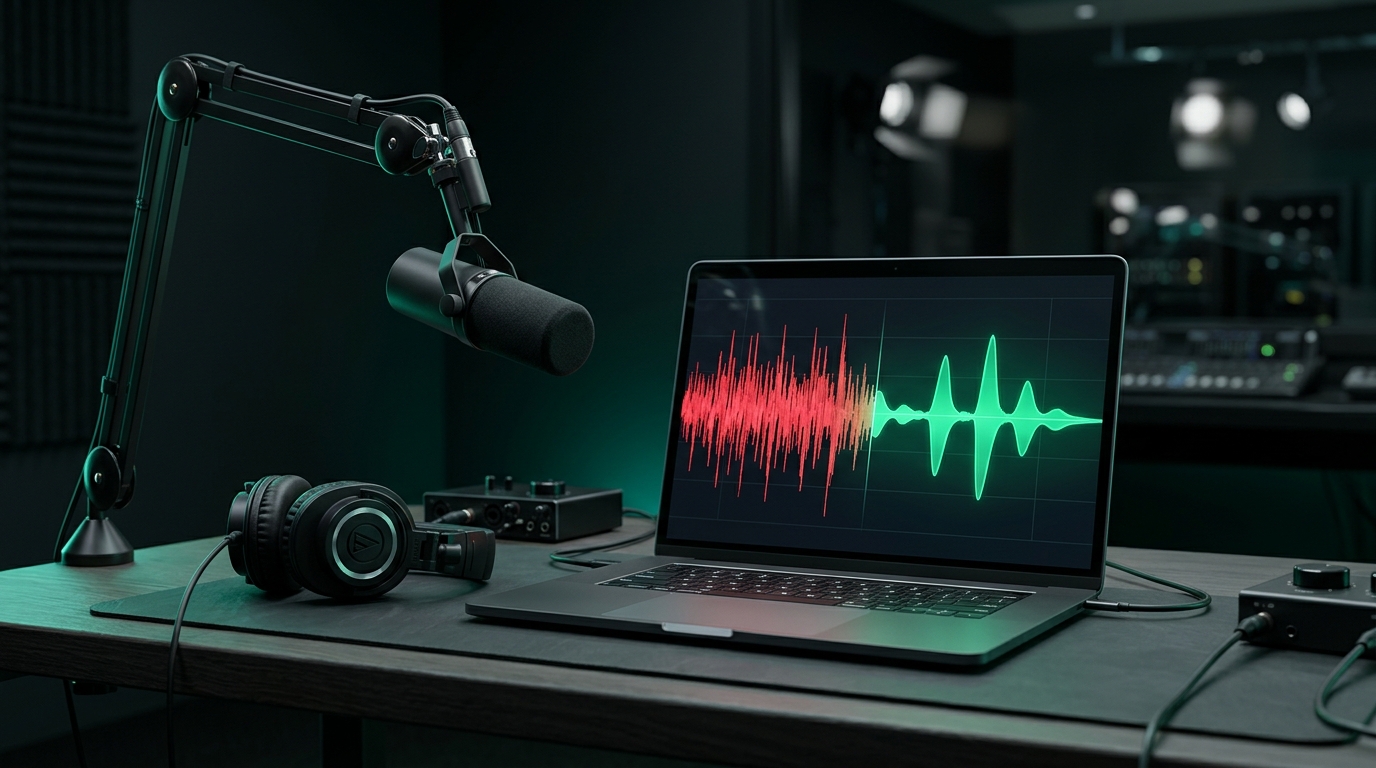
Recorded Zoom meetings, client discovery calls, online lectures, and remote podcast interviews almost always sound worse when you play them back than they felt during the live call. Even if every participant turned on Zoom's "Suppress background noise" setting, exported .m4a and .mp4 recordings routinely suffer from laptop cooling fan bleed, hollow conference-room echo, mechanical keyboard clicks, and watery, robotic voice artifacts.
In this guide, you will learn why Zoom's built-in filter creates that "underwater robotic" distortion—and how to rescue both local and cloud Zoom recordings in under two minutes without spending hours tweaking complicated DAW plugins.
Why Zoom Recordings Sound Noisy or Robotic (Even With Noise Suppression On)
Zoom's real-time audio engine has to run on modest laptop CPUs with less than 15 milliseconds of processing latency so two people can talk smoothly without talking over each other. To hit that speed limit, Zoom compromises in three critical ways:
- Aggressive Spectral Gating ("Robotic / Underwater Voice") When Zoom's High background noise suppression tries to block out an air conditioner, typing, or street traffic during active speech, its lightweight CPU model aggressively zeroes out narrow frequency bins. That chops off vocal harmonics and leaves consonants sounding metallic, choppy, and synthetic.
- Noise Gate Pumping Underneath Speech During silent pauses, Zoom mutes the track completely—giving you false confidence that the room is quiet. The instant a guest speaks, the noise gate snaps open and lets laptop fan whine, HVAC airflow, and preamp static rush back in behind every sentence.
- Zero Room Echo (De-Reverb) Control Zoom's live filter looks for steady background noise, not acoustic reflections of your own voice bouncing off bare drywall or glass conference-room windows. When someone sits two or three feet away from a MacBook microphone, early reflections (10–60 ms) make their voice sound hollow and distant.
Quick Comparison: Zoom Live Suppression vs. Post-Processing With CleanAudio AI
| Audio Problem | Zoom Built-In Live Filter | CleanAudio Post-Call 48 kHz AI |
|---|---|---|
| Laptop Fan & HVAC Hum | Bleeds through whenever speaker talks | Removed continuously, even mid-word |
| Untreated Room Echo | Remains hollow and boxy | Suppressed with neural De-Reverb |
| Robotic Voice Artifacts | Common on High suppression setting | Preserves full chest warmth & crisp sibilance |
| Keyboard & Mouse Clicks | Frequently clips speech syllables | Attenuated cleanly without cutting words |
| MP4 Video Recordings | Requires manual re-encoding elsewhere | Direct upload, lossless video stream pass-through |
Step 1: Locate Your Raw Zoom Recording Files
Before cleaning your recording, make sure you grab the highest-quality track Zoom saved:
- Local Recordings (Desktop): By default, Zoom saves files inside
Documents/Zoom/<Date & Meeting Name>/. You will find:audio_only.m4a— Standalone mixed audio track.zoom_0.mp4— Full video recording with embedded audio.Audio Record/folder (if multi-track recording was enabled) — Separate.m4aaudio stems for each individual speaker! Pro Tip: Cleaning only the noisy guest's individual.m4atrack gives the best possible quality because it leaves clean studio tracks untouched.
- Cloud Recordings: Log into the Zoom web portal → Recordings → download either the
.mp4video or.m4aaudio file.
Step 2: Clean Your Zoom Audio or Video in 4 Steps With CleanAudio
You do not need Audacity, Adobe Audition, or FFmpeg command-line tools to separate audio from your Zoom .mp4 video.
- Upload Your
.m4aor.mp4File Drag your Zoom recording straight into the CleanAudio AI Background Noise Remover (for.m4aaudio) or our Remove Background Noise from Video tool (for.mp4video files up to 2GB / 60 minutes). - Select the Matching Neural Filter Mode
- Auto AI Clean: Best overall choice for mixed laptop fan noise, AC hum, keyboard typing, and headphone hiss.
- Room Echo & Reverb: Use this mode (or our dedicated Remove Echo from Audio tool) when a participant spoke into a laptop mic or speakerphone inside a bare bedroom or glass boardroom.
- Voice Isolation (Vocal Only): Ideal if someone left a TV, radio, or cafe music playing in the background during the call.
- Audition Your Free 30-Second A/B Preview Within seconds, CleanAudio slices and processes the first 30 seconds. Toggle back and forth between Original and AI Cleaned at the exact same timestamp to verify that the speaker's natural vocal warmth is intact while background noise drops into silence.
- Download Clean Audio or Lossless Remuxed Video Audition the first 30 seconds in your browser completely free with no signup, then unlock full-length exports as uncompressed 48 kHz WAV, 320 kbps MP3, or an MP4 video with your original video resolution copied bit-for-bit.
Can AI Fix a Zoom Voice That Already Sounds Robotic?
If Zoom's High suppression already damaged the recording in real time during the call, here is what can and cannot be recovered:
- What Can Be Rescued: Lingering room echo, steady compression hiss, harsh fan bleed behind words, and harsh sibilance spikes can be cleaned dramatically using CleanAudio's Auto AI Clean + Room Echo processing.
- What Cannot Be Invented: If Zoom completely muted a 0.5-second syllable during heavy packet loss, no tool can fabricate lost words. That is why preventing real-time over-filtering on future calls is critical.
5 Zoom Settings to Change Before Your Next Important Recording
- Set "Suppress background noise" to
Low(orAuto) for Podcast Guests Ask guests in a relatively quiet room to switch Zoom's suppression from High to Low. Letting a little consistent room hiss into the raw file is far better than letting Zoom destroy their vocal tone with robotic artifacts—because CleanAudio can erase steady room noise cleanly afterward. - Enable "Record a separate audio file of each participant" Go to Zoom Settings → Recording → Record a separate audio file of each participant. This prevents two people talking at once from baking background noise onto both voices.
- Turn On "Original Sound for Musicians" (When Using an XLR/USB Mic) For hosts using a Shure SM7B, Rode PodMic, or Blue Yeti with headphones, enabling Original Sound disables Zoom's automatic gain pumping and preserves crisp 48 kHz studio detail.
- Always Wear Wired Headphones or AirPods Speakerphone feedback causes acoustic echo cancellation (AEC) to duck voices whenever two people laugh or interrupt each other.
- Close Heavy Browser Tabs to Keep Laptop Fans Off Screen sharing plus 30 Chrome tabs spins up MacBook and Windows cooling fans directly underneath the built-in mic.
Frequently Asked Questions
Can I remove background noise from a 60-minute Zoom .mp4 webinar without losing screen-share sharpness?
Yes. CleanAudio processes files up to 2GB and 60 minutes long and uses lossless video stream copy (-c:v copy) when remuxing .mp4 files. Your slides, code demos, and webcam frames remain 100% pixel-identical.
Does CleanAudio work on Zoom .m4a files recorded on iPad or iPhone?
Yes. Apple and Android .m4a recordings work natively in the browser workbench with zero manual conversion required.
Is my confidential client meeting recording kept private? Yes. Every file is encrypted in transit via TLS 1.3, processed in isolated Cloudflare R2 storage, automatically deleted within 24 hours, and never used to train AI models.
Hear the Difference on Your Own Audio or Video Free
Upload MP3, WAV, M4A, MP4, or MOV files up to 2GB with zero signup. Compare Original vs. AI Cleaned playback in real time and download studio-clean audio.